ChatGPT exposes custom MCP servers as apps. You create them in Developer Mode through
the connector settings, and each app needs a remote HTTP endpoint. Most MCP servers
are npx or uvx commands that speak stdio and expect to run on your laptop, so they
do not provide a URL for ChatGPT’s connector form.
MCP Nest closes that gap. It runs your stdio MCP servers in the cloud and puts every tool they expose behind one authenticated HTTPS endpoint, which is exactly the shape ChatGPT wants. Deploy the Apple Calendar server, the Fastmail server and a flight search server, and ChatGPT sees all of their tools through a single custom app.
Before you start
You need one MCP Nest deployment running. If you don’t have one yet, work through
Getting Started with MCP Nest first. It takes a JSON
mcpServers block and deploys it. Or start from a guide for the service you actually
want in ChatGPT:
Which URL to give ChatGPT
Open your MCP Nest dashboard, switch to the OAuth (Claude, Cursor, etc.) tab and copy the Streamable HTTP Endpoint, not the SSE Endpoint (Legacy) next to it. It looks like:
https://mcp.mcpnest.dev/mcp/<your-config-id>ChatGPT supports the MCP OAuth flow, so this is the one to use. It never puts a token in a field you might screenshot, and you can revoke ChatGPT’s access from MCP Nest without touching your other clients.
The dashboard also shows an Authenticated URL with ?token=... appended. ChatGPT
does not need it. It exists for clients that cannot do OAuth; see
Using MCP Nest without OAuth.
If you have several configs, each one has its own URL and its own tool list. That is the cleanest way to keep work tools out of personal chats. See deploying multiple separate configurations.
Add the app
-
Open your ChatGPT connector settings: https://chatgpt.com/#settings/Connectors.
-
Click Advanced Settings.
-
Toggle Developer Mode in https://chatgpt.com/#settings/Connectors/Advanced. Custom MCP connectors are only offered behind this toggle.

- Click Create to create a new MCP Server.

-
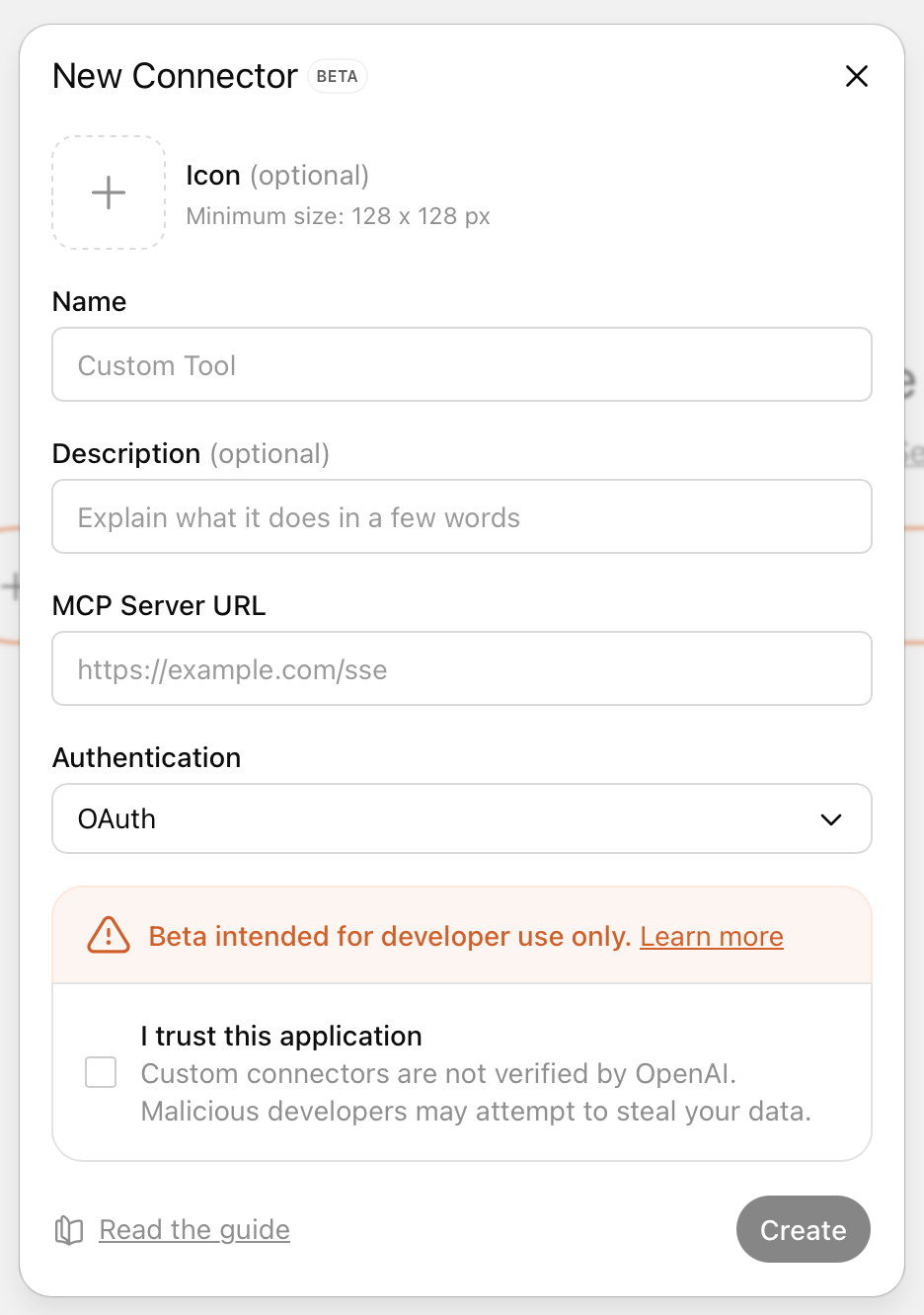
Fill out the form:
-
Name:
MCP Nest - Server URL: the Streamable HTTP Endpoint from the OAuth (Claude, Cursor, etc.) tab in the dashboard
-
Authentication:
OAuth - Toggle: I trust this application
-
Name:
-
Click Create. You will be sent to MCP Nest to authorize the connection, then returned to the connectors list with MCP Nest in it.
-
Developer Mode is per-conversation as well as per-account. In a new chat, enable Developer Mode to make the app’s tools available.
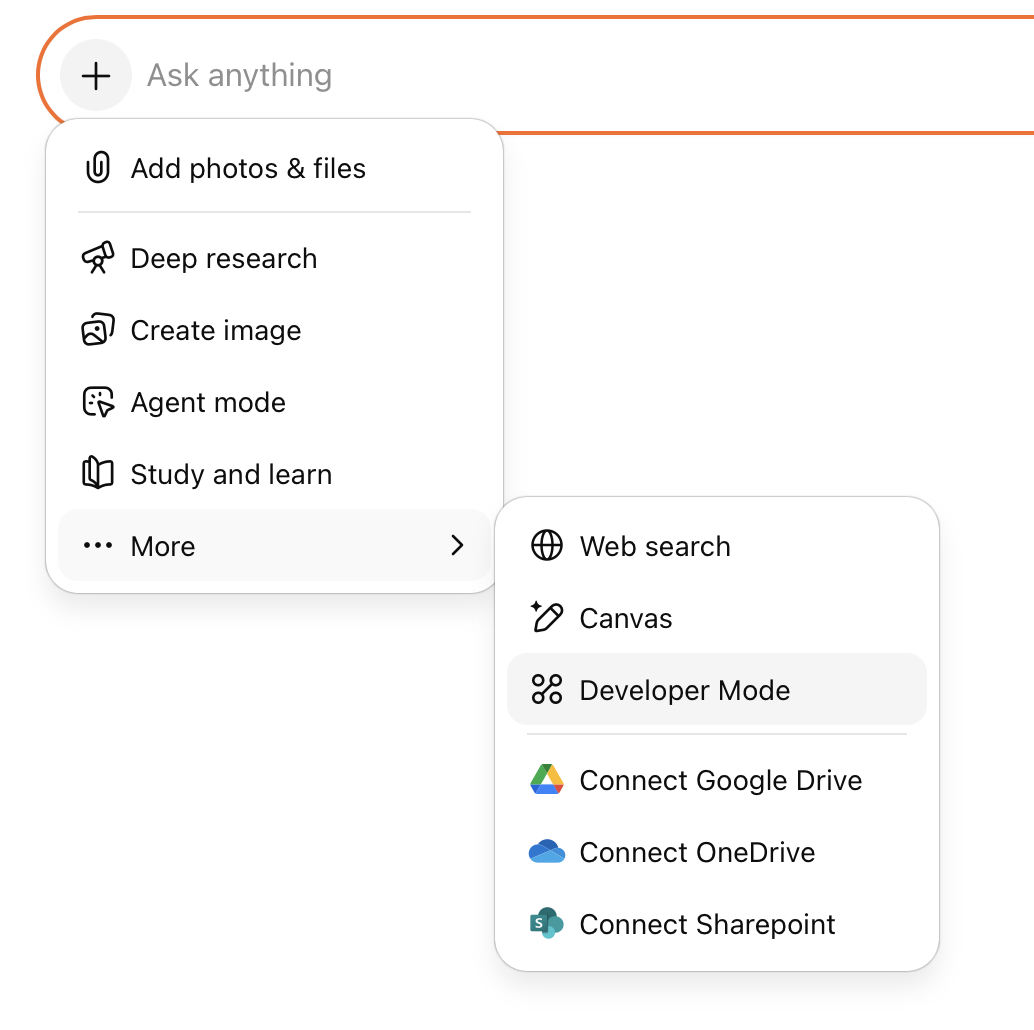
Your tools are now callable from the conversation.

What the tools look like
MCP Nest aggregates every server in a config behind the one connector and namespaces
each tool as <server>__<tool>. A config running caldav-mcp under the name
icloud_calendar exposes icloud_calendar__list_events,
icloud_calendar__create_event, and so on.
That naming matters when you prompt. “Check my calendar for Thursday” is usually enough, but if ChatGPT picks the wrong tool, naming the server (“use icloud_calendar to check Thursday”) settles it immediately.
Keep the tool list short
Every tool in the app is spent context on every turn, and a long list makes the model worse at picking the right one. Two servers with twenty tools each is already enough to cause misfires.
Disable what you don’t need from the MCP Nest dashboard: the toggles are per-user and
take effect on the next tools/list, so ChatGPT stops seeing them without a redeploy.
See how to disable individual MCP tools.
Troubleshooting
The connector fails to save, or no tools appear. A deployment still in progress returns a 404 status code rather than an empty tool list, which causes some clients to reject the endpoint. Wait until the MCP Nest dashboard shows the deployment as Active, hit Refresh, then remove and re-add the connector in ChatGPT.
Tools appear in settings but not in the chat. Developer Mode has to be enabled in that specific conversation, not just in account settings. Start a new chat and turn it on before your first message.
Authorization loops back to the login page. You are signed into MCP Nest in a different browser profile than the one ChatGPT redirected. Sign in to mcpnest.dev in the same profile and retry.
A tool call fails with an upstream error. That is your MCP server talking, not the connector. Open the Logs page in MCP Nest. A missing or expired API key in the server’s environment is by far the most common cause.
Tools disappeared after a redeploy. Renaming a server in your config renames every tool it exposes, since the prefix comes from the server name. Click Refresh on the dashboard so the new names are discovered.