MCP Nest is your gateway to running Model Context Protocol (MCP) servers in the cloud. No more local setup hassles, dependency issues, or keeping your computer running 24/7. This guide walks you through what MCP Nest does and how it works in this app.
What is MCP Nest?
MCP Nest takes your mcpServers configuration and runs those servers in the cloud, then exposes a single authenticated MCP endpoint that your AI assistant can connect to. Whether you’re using Claude’s Remote Connectors, ChatGPT, or any MCP‑compatible client, your tools are available from anywhere.
Behind the scenes, MCP Nest:
- Stores your MCP configuration securely
- Deploys servers to our infrastructure
-
Aggregates all tools behind one endpoint (
/mcp) - Authenticates requests with a per‑user token
- Optionally filters the tool list to hide disabled tools you’ve toggled in the dashboard
Prerequisites
Before you begin, you’ll need:
- An MCP Nest account (click “Log in” from the homepage)
-
Your MCP server configuration (the
mcpServersJSON) - API keys for any services your MCP servers require
Quick Deploy: Try It Now
Want to skip the setup and try MCP Nest right away? Deploy the GitHub MCP server with one click:

You’ll be prompted to fill in your GitHub personal access token before deploying.
Step 1: Understanding Your MCP Configuration
Your MCP configuration file typically looks like this:
{
  "mcpServers": {
    "github": {
      "command": "npx",
      "args": [
        "-y",
        "@modelcontextprotocol/server-github"
      ],
      "env": {
        "GITHUB_PERSONAL_ACCESS_TOKEN": "gho_...",
        "GITHUB_TOOLSETS": "repos,issues,pull_requests"
      }
    }
  }
}
This configuration defines:
-
Server name:
github- A unique identifier for this server -
Command: The executable to run (
npx,uvx,node, etc.) - Args: Command-line arguments
- Environment variables: API keys and configuration options
-
Transport: Use
{"type": "stdio"}for most servers
Step 2: Preparing Your Configuration
- Gather your API keys: Make sure you have all necessary API keys for your MCP servers
- Test locally (optional): If you have the tools installed, test your configuration locally first
- Include required secrets: Add the real API keys and secrets your MCP servers need. MCP Nest stores them securely for you
Step 3: Save and Deploy
- Log into your MCP Nest dashboard
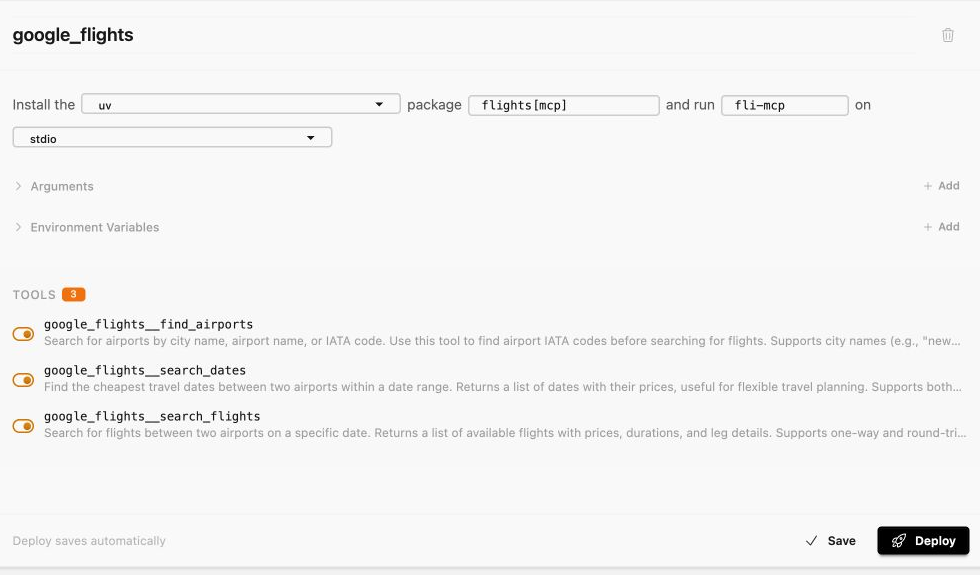
- Click Add Server, then enter its name, package manager, package name, and transport
- Add any required environment variables
- Click Save, then Deploy to build and run your servers in the cloud
- Wait until the dashboard reports the deployment as active
You can view live logs at any time from the “Logs” page.
Note: Deployments are per‑user; only your authenticated requests will be routed to your latest active deployment.
Step 4: Connect your AI assistant
Open the Connect panel in your workspace and select the OAuth (Claude, Cursor, etc.) tab. Copy the Streamable HTTP Endpoint for your config.

Use the Pre-authed tab only when a client does not support OAuth. Its URL is a bearer credential, so treat it like a password.
Claude Desktop (Remote Connectors)
Add this to your Claude Desktop configuration:
{
  "mcpServers": {
    "mcp-nest": {
      "transport": "http",
      "url": "https://mcp.mcpnest.dev/mcp/<your-config-id>"
    }
  }
}
ChatGPT and other clients
Point your MCP client to the Streamable HTTP Endpoint using the HTTP transport, then complete the OAuth prompt when it opens.
Step 5: Managing Your Deployments
Viewing Logs
Check server logs from the “Logs” page to diagnose startup and runtime issues.
Updating Configurations
To update a deployed configuration:
- Open “Config”
- Edit your JSON
- Save and click “Deploy” again. We’ll roll out the change to your active deployment
Monitoring Usage
You can see aggregated tools and counts on the Dashboard once servers are refreshed.
Common Use Cases
Running Multiple MCP Servers
MCP Nest aggregates multiple servers into a single endpoint:
{
  "mcpServers": {
    "github": { ... },
    "perplexity": { ... },
    "weather": { ... }
  }
}
All these servers become available through one connection to your AI assistant.
Fine‑grained control over tools
From the Dashboard you can disable individual tools (per user). Disabled tools are removed from the tools/list response so your client only sees what you’ve allowed. See the “How to disable individual MCP tools” guide for details.
Troubleshooting
Server Not Responding
- Check the logs for error messages
- Verify your API keys are correct
- Ensure the MCP server package exists and is correctly specified
Connection Issues
- Verify your endpoint URL is correct
- Check your authentication token
- Ensure your AI assistant supports HTTP transport
Performance Issues
- Review server logs for bottlenecks
- If a particular server is slow to respond, try disabling heavy tools to reduce list size
Best Practices
- Security: Never commit API keys to version control
- Testing: Test configurations locally when possible
- Monitoring: Regularly check logs for errors
- Updates: Keep your MCP server packages up to date
- Documentation: Document your server configurations for team members
Next Steps
Now that you have MCP Nest set up:
- Explore your aggregated tools on the Dashboard
- Learn how to disable individual MCP tools
- Connect any MCP server to Gemini Spark
- Connect any MCP server to OpenAI dots
Need Help?
- Check logs first; they usually pinpoint issues
- If something looks off in the UI, hit “Refresh” on the Dashboard to reload tool lists
Welcome to the nest! 🪹