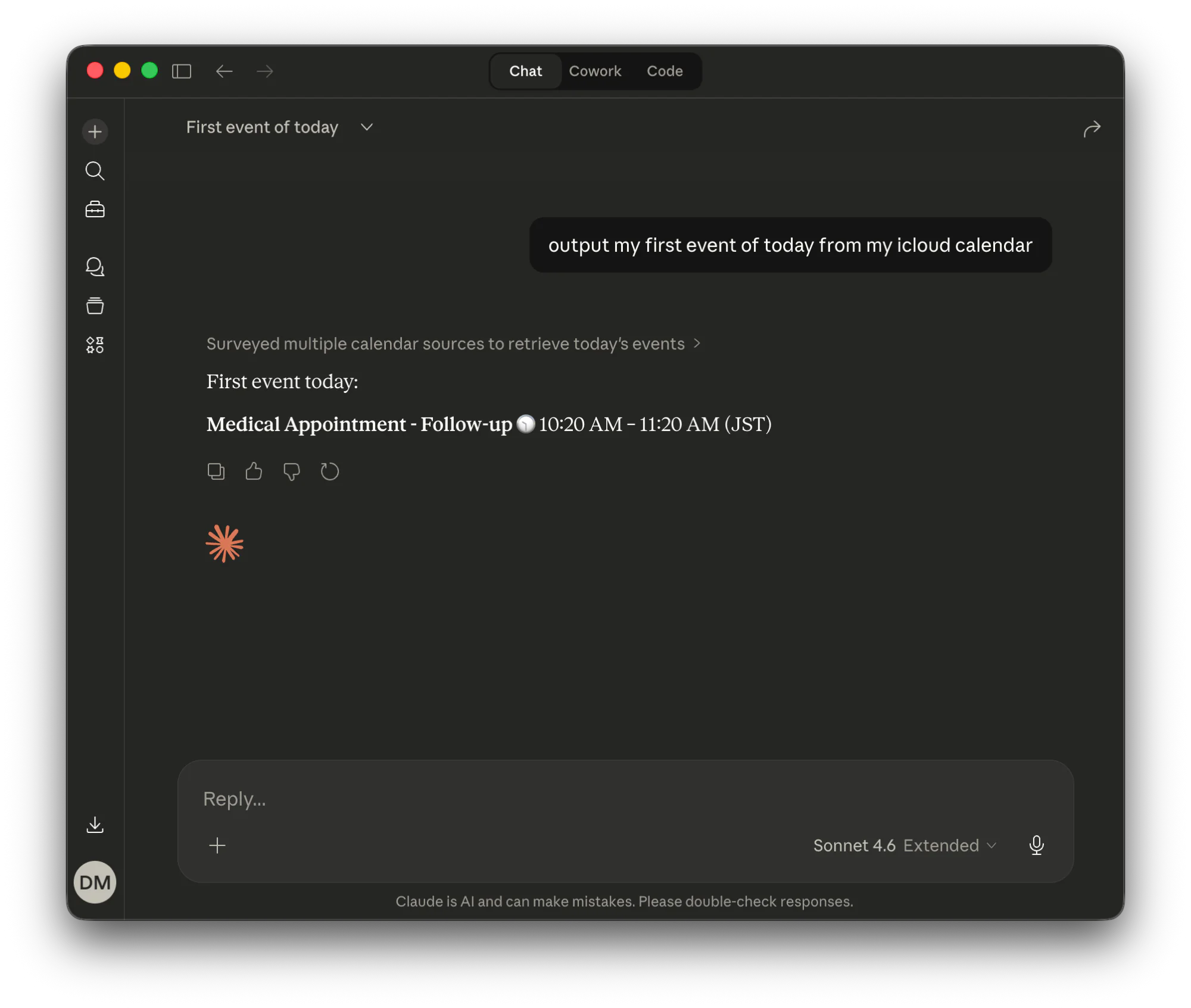
You can connect Apple iCloud Calendar to Claude, ChatGPT, or Perplexity by turning a CalDAV MCP server into a remote MCP connector with MCP Nest. The CalDAV MCP normally runs on your local machine over stdio, which hosted AI assistants cannot reach. MCP Nest hosts the server and provides a single remote URL that Claude, ChatGPT, and Perplexity can all query.
This guide uses the madbonez/caldav-mcp server, which connects to iCloud over CalDAV, Apple’s open calendar protocol for external clients.
Quick Deploy
Deploy the CalDAV MCP server to MCP Nest with one click:

You will be prompted for your Apple ID and an app-specific password before deploying.
What you can do with Apple Calendar in your AI assistant
Once connected, your assistant references your live schedule directly:
- “What does my Thursday look like?”
- “Am I free between 2pm and 4pm next Tuesday?”
- “Add a dentist appointment on Monday at 9am.”
- “Find a 30 minute slot this week when I have nothing booked.”
- “What meetings do I have left today?”
1. Create an app-specific password
iCloud requires an app-specific password for CalDAV access rather than your primary Apple ID credentials.
Your Apple Account must have two-factor authentication enabled. If the app-specific password option is missing, enable two-factor authentication under Sign-In and Security first.
- Sign in at appleid.apple.com.
- Open Sign-In and Security and select App-Specific Passwords.
-
Create a password and give it a name you will recognize later, such as
MCP Nest calendar. - Copy the generated password. Apple displays it only once.
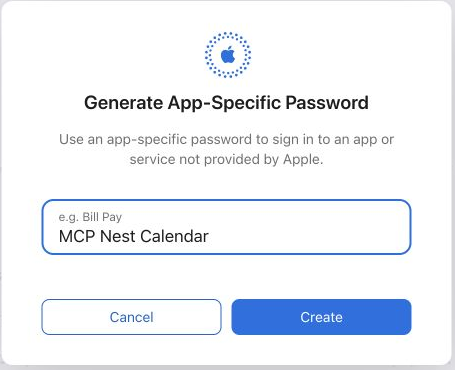
App-specific passwords can be revoked individually at any time without changing your Apple ID password.
2. Create a New Config in MCP Nest
Go to your MCP Nest dashboard and click Create MCP Deployment.
Command: npx
Args: caldav-mcp
Environment Variables:
| Variable | Value |
|---|---|
CALDAV_BASE_URL |
https://caldav.icloud.com/ |
CALDAV_USERNAME |
Your Apple ID email |
CALDAV_PASSWORD |
The app-specific password from step 1 |
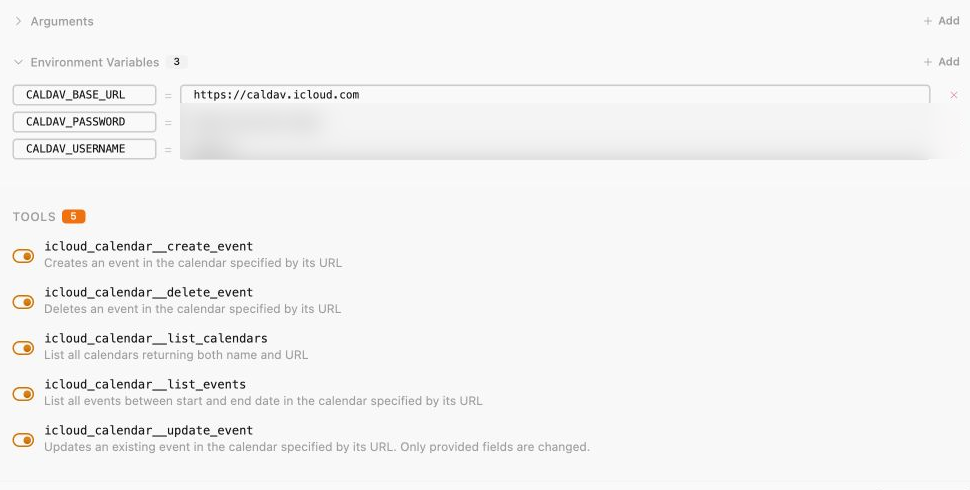
Save and deploy. MCP Nest starts the server and provides the remote URL for your AI assistants.
3. Connect to Claude, ChatGPT, or Perplexity
The same remote URL works across all MCP-compatible clients.

Connecting to Claude
- Navigate to your Claude.ai connector settings page: https://claude.ai/settings/connectors.
- Click the Add Custom Connector button.
-
Fill in the details:
-
Name:
Apple Calendar via MCP Nest - Remote URL: in the MCP Nest dashboard, open the OAuth (Claude, Cursor, etc.) tab and copy the Streamable HTTP Endpoint. Do not use the SSE Endpoint (Legacy) field.
-
Name:
- Click Add, then click Connect next to it in the list to authorize the connection.
For more detail, see how to connect any MCP server to Claude.
Connecting to ChatGPT
- Open your ChatGPT connector settings: https://chatgpt.com/#settings/Connectors.
- Click Advanced Settings and toggle Developer Mode. Custom MCP connectors are only available behind this toggle.
-
Click Create to add a new MCP Server, then fill in the form:
-
Name:
Apple Calendar via MCP Nest - Server URL: the Streamable HTTP Endpoint from the OAuth (Claude, Cursor, etc.) tab in the MCP Nest dashboard
-
Authentication:
OAuth - Toggle: I trust this application
-
Name:
- Click Create and authorize the connection when MCP Nest prompts you.
- Developer Mode is per-conversation as well as per-account. In a new chat, enable Developer Mode to make the calendar tools available.
For more detail, see how to connect any MCP server to ChatGPT.
Connecting to Perplexity
- Navigate to your Perplexity account connectors page: https://www.perplexity.ai/account/connectors.
- Choose the option to add a new custom connector.
- Provide your MCP Nest remote URL as the connection point.
- Authorize the connection as prompted.
For more detail, see how to connect any MCP server to Perplexity.
Troubleshooting
The connector fails to connect. A deployment still in progress returns a 404 status code rather than an empty tool list, which causes some clients to reject the endpoint. Wait until the MCP Nest dashboard shows the deployment as Active before adding or reconnecting the connector.
Authentication fails. The most common cause is submitting your main Apple ID password instead of an app-specific password. Generate a fresh app-specific password and update CALDAV_PASSWORD. Also verify that CALDAV_USERNAME contains your full Apple ID email address.
The assistant sees no events. Confirm that the target calendar syncs to iCloud rather than being stored locally on a Mac or iPhone. Local on-device calendars are not published over CalDAV.
Frequently asked questions
Do I need to keep my computer running? No. MCP Nest hosts the CalDAV MCP server in the cloud, keeping it reachable when your machine is off.
Can I use the same deployment in Claude and ChatGPT at once? Yes. The single remote URL connects to Claude, ChatGPT, Perplexity, or any other MCP-compatible client simultaneously.
Does this work with Google Calendar? Not with this server. It is configured specifically for iCloud CalDAV endpoints. Google Calendar requires a dedicated MCP server.
How do I revoke access? Delete the app-specific password in your Apple ID settings. Access stops immediately, and the password cannot be recovered afterwards. To remove the server in MCP Nest, edit the configuration, remove the CalDAV server, and redeploy. You can delete entire configurations only if they are not your main configuration.
Is my calendar data stored by MCP Nest? MCP Nest proxies requests between your AI assistant and the CalDAV MCP server without storing a copy of your calendar data. See the privacy policy for details.