For some clients or use cases, the standard OAuth flow might be too complex or not supported. Pre-authenticated URLs allow you to bypass the OAuth flow, prevent session expiration issues, and easily integrate with clients that don’t natively support OAuth.
Why use Pre-authenticated URLs?
- Skip OAuth flow: Useful for automated scripts or simple clients.
- Avoid session expiration: Long-lived tokens (if applicable) or simpler re-configuration.
-
Broad compatibility: Usable in any client that supports
stdioor basic HTTP transport without complex auth handshakes.
How to set it up
1. Locate your pre-authenticated URL
Navigate to your configuration dashboard (e.g., https://mcpnest.dev/<YOUR_CONFIG_ID>/dashboard).
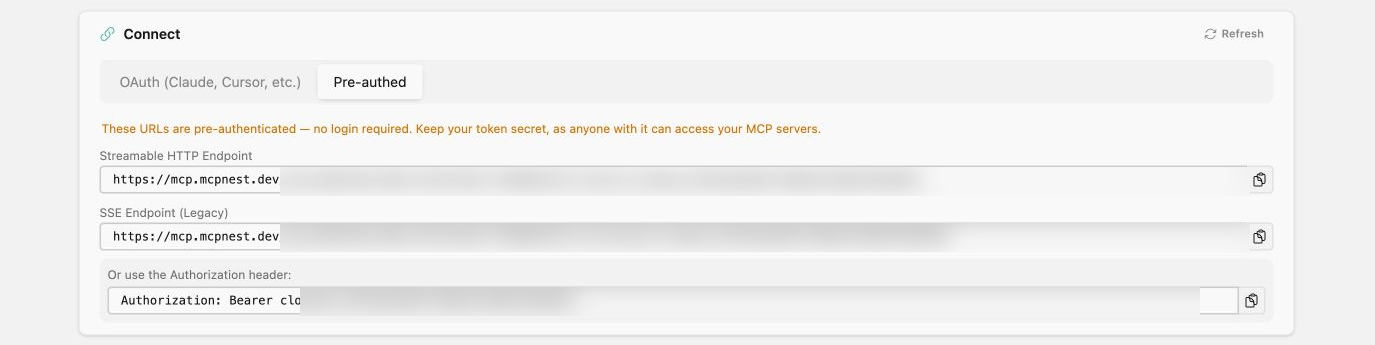
At the top of the page, you will see two tabs:
- Pre-authed: This is the one you want. Its Streamable HTTP Endpoint includes your access token directly in the query parameters.
- OAuth (Claude, Cursor, etc.): This is for clients that support the full OAuth flow.
2. Configure your Client
Copy the Streamable HTTP Endpoint from the Pre-authed tab.
Open your client configuration file (for example, ~/.gemini/settings.json or ~/.claude/config.json) and add a new server entry using mcp-remote.
Here is an example configuration:
"mcpnest": {
  "command": "npx",
  "args": [
    "mcp-remote",
    "https://mcpnest.dev/mcp/c6da7aac-0ca0-4d4b-b548-901eb160e428?token=xxx"
  ],
  "type": "stdio",
  "env": {}
}
Replace the URL in the args array with the Streamable HTTP Endpoint you copied from your dashboard.
Your client will now connect directly to your MCP Nest deployment using the provided token.