Grok Bot installs remote MCP servers from a chat message. Most community MCP servers
run locally as npx or uvx commands over stdio. MCP Nest hosts them behind the
remote endpoint that Grok Bot needs.
This flow is separate from the custom connector form at grok.com/connectors. For
that form, use How to connect any MCP server to
Grok.
Before you start
You need an MCP Nest deployment with an Active status. If you do not have one, follow Getting Started with MCP Nest first.
1. Copy the MCP endpoint
Open your deployment in MCP Nest and select the OAuth (Claude, Cursor, etc.) tab. Copy the Streamable HTTP Endpoint.

Endpoint format:
https://mcp.mcpnest.dev/mcp/<your-config-id>Ensure the URL includes your config ID. Do not use the SSE Endpoint (Legacy) or the Authenticated URL for this flow.
2. Ask Grok Bot to install it
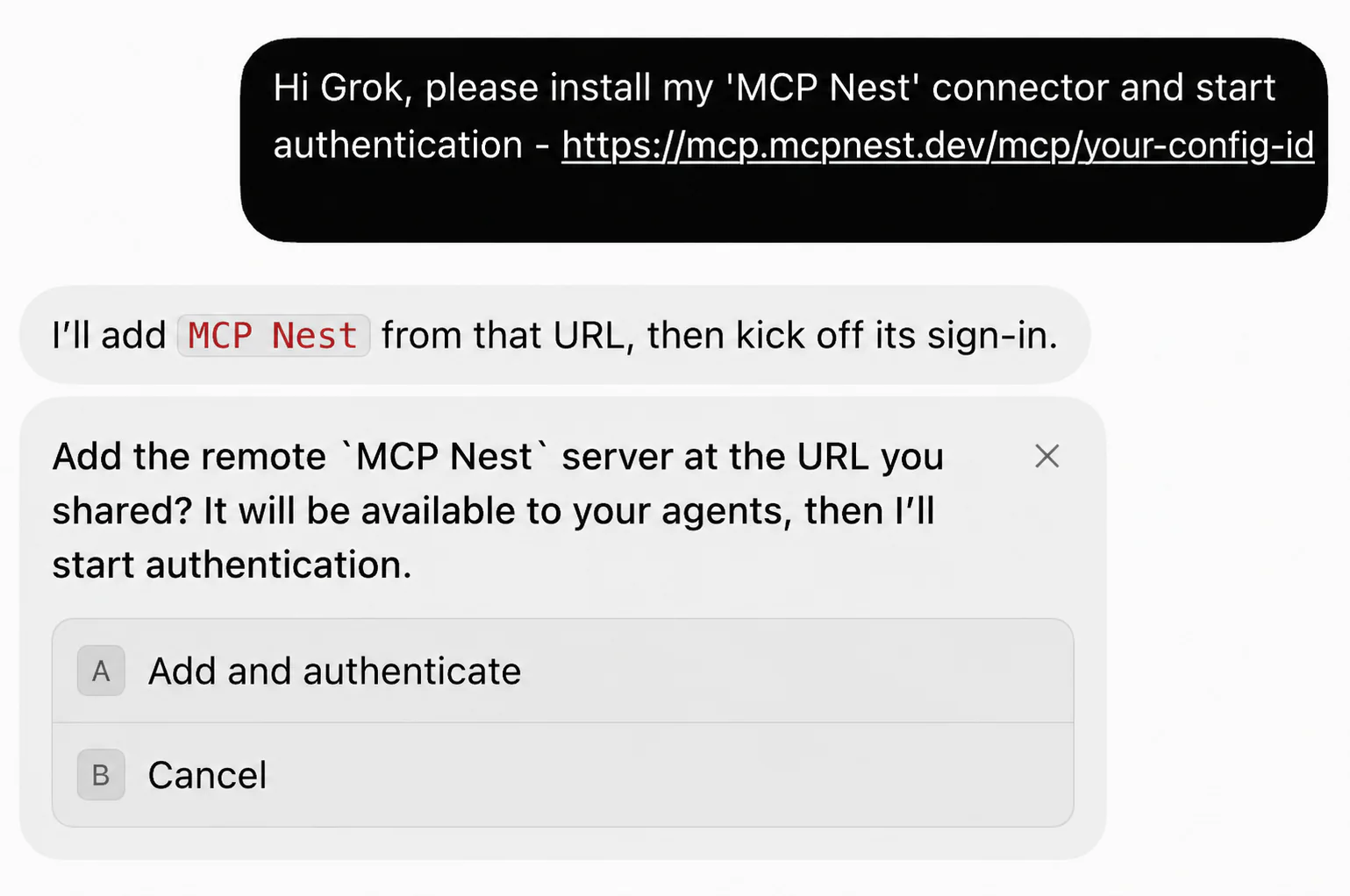
Open a conversation with Grok Bot and send the following message with your endpoint:
Hi Grok, please install my 'MCP Nest' connector and start authentication - https://mcp.mcpnest.dev/mcp/<your-config-id>Grok Bot asks you to confirm the remote server. Choose Add and authenticate.
3. Authorize MCP Nest
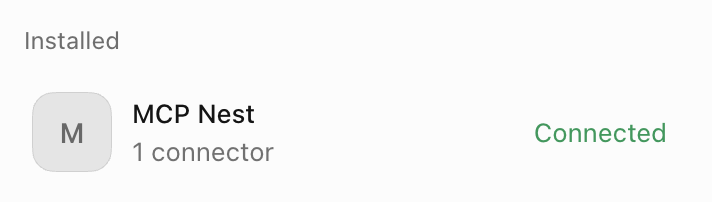
Open the MCP Marketplace and find MCP Nest under Installed. If it shows an Authenticate button, click it and approve access on the MCP Nest authorization screen.
The marketplace changes the connector status to Connected when authorization is complete.
Try the connector
Ask Grok Bot to do something that requires a tool in your deployment. For a config with a flight search server, you could ask:
Use my MCP Nest flight search tool to find flights from Tokyo to Lisbon next March.Troubleshooting
Grok Bot cannot add the server. Check that the deployment is Active, click Refresh in MCP Nest, and send the install message again.
MCP Nest stays on Authenticate. Sign in to mcpnest.dev in the browser used for authorization, then retry.
The wrong tools appear. Compare the config ID in the URL you sent with the one in the MCP Nest dashboard. Each deployment has its own endpoint and tool list.
A tool call fails. Open the deployment’s Logs page in MCP Nest to see the MCP server error.