Grok’s custom connectors accept a server URL over HTTPS. Most MCP servers don’t have
one: they’re npx or uvx commands that speak stdio and expect to run on the machine
you’re sitting at. There’s nothing to paste into the form.
MCP Nest runs those servers in the cloud and gives you the single authenticated HTTPS endpoint that Grok wants, with every tool from every server in the config behind it.
Before you start
You need one deployed MCP Nest config. Start with Getting Started with MCP Nest, or deploy something you’d actually use from Grok:
Which URL to give Grok
From your MCP Nest dashboard, open the OAuth (Claude, Cursor, etc.) tab and copy the Streamable HTTP Endpoint for the config you want Grok to reach. Do not use the SSE Endpoint (Legacy) field.
https://mcp.mcpnest.dev/mcp/<your-config-id>
The config id matters here. The bare https://mcp.mcpnest.dev/mcp resolves to your
main config; if you keep several, copy the URL from the dashboard of the specific one
rather than typing it by hand.
The Authenticated URL next to it appends ?token=... and skips the OAuth
handshake. It’s the fallback if authorization won’t complete. Treat it as a
credential. See Using MCP Nest without OAuth.
Add the connector
-
Click New Connector.
-
Choose Custom.
-
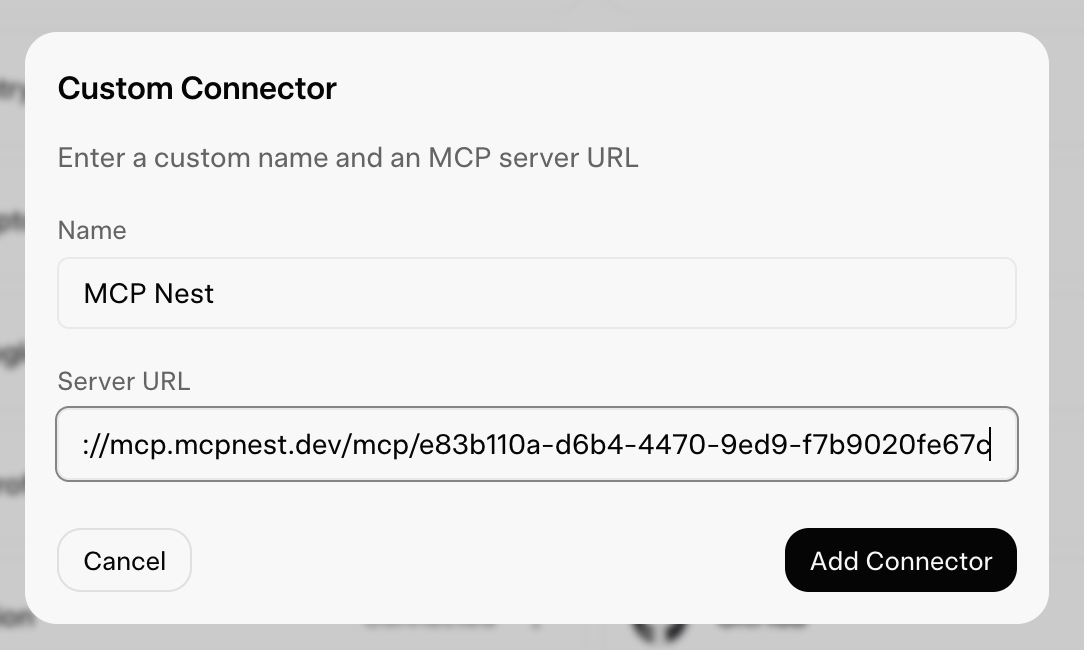
Fill out the form:
-
Name:
MCP Nest(or a name of your choice) - Server URL: the Streamable HTTP Endpoint from the OAuth (Claude, Cursor, etc.) tab in your dashboard
-
Name:
-
Click Add Connector.
-
If Grok asks you to authorize, follow the redirect to MCP Nest and approve access.
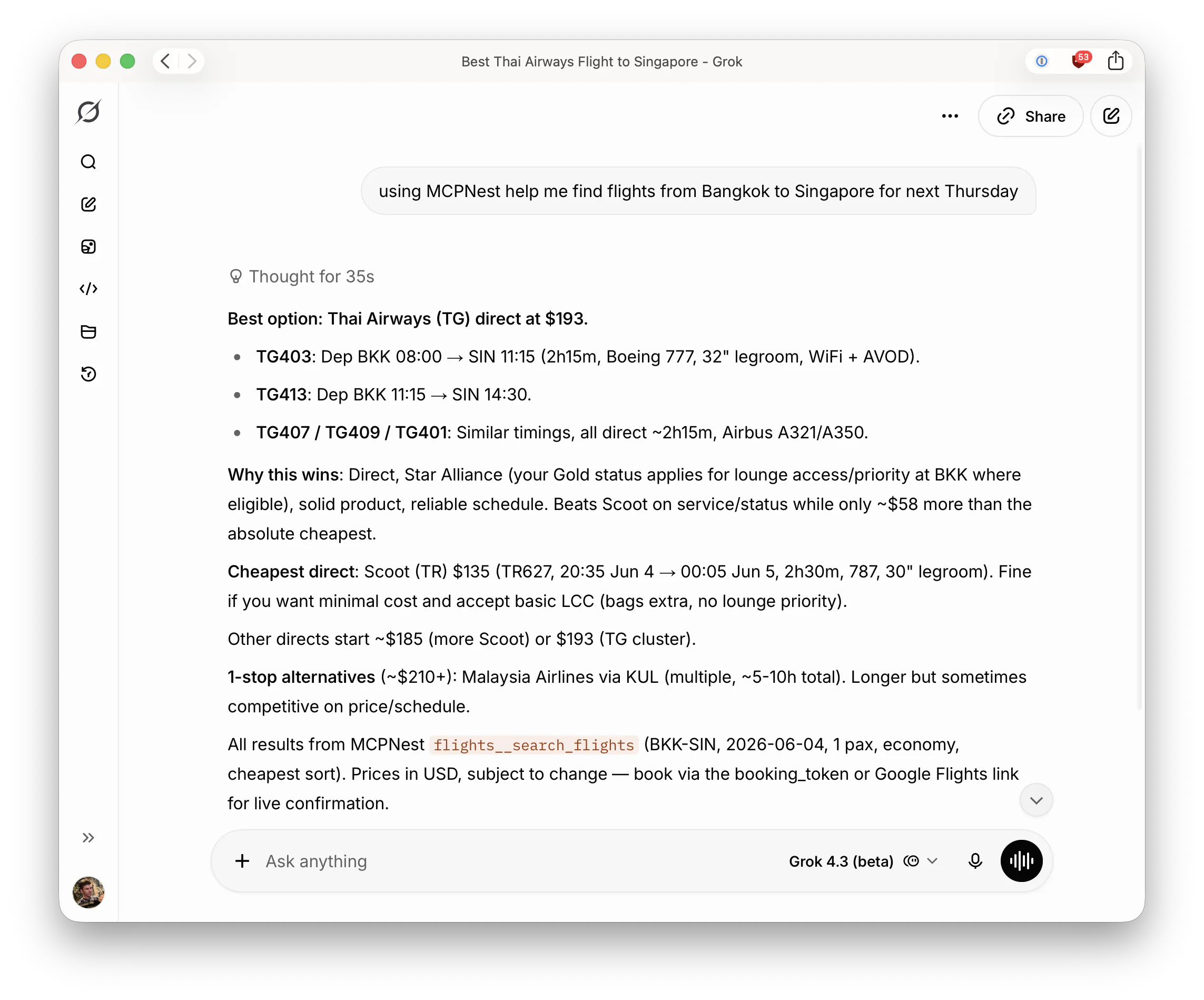
Grok can now call your tools as part of a conversation.
What the tools look like
Every server in the config sits behind the one connector, with tools namespaced as
<server>__<tool>. A config running a flights server exposes
flights__search_flights, flights__find_airports, and so on.
Grok tends to answer from its own knowledge unless a request clearly needs a tool. Being explicit (“search flights from Tokyo to Lisbon in March” rather than “when should I fly to Lisbon”) gets the connector used.
Keep the tool list short
Everything the connector advertises is context on every turn, and a long list makes
tool selection less reliable. Disable what you don’t need from the MCP Nest dashboard;
the toggles are per-user and take effect on the next tools/list with no redeploy. See
how to disable individual MCP tools.
For a connector that only ever exposes a couple of servers, give Grok its own config. See deploying multiple separate configurations.
Troubleshooting
The connector fails to connect, or has no tools. A deployment still in progress returns a 404 status code rather than an empty tool list, which causes some clients to reject the endpoint. Wait until the MCP Nest dashboard shows the deployment as Active, click Refresh, then remove and re-add the connector.
Authorization doesn’t complete. Sign in to mcpnest.dev in the same browser Grok redirected to, then retry. If it still fails, use the Authenticated URL instead.
You pointed at the wrong config. The tools you see are whatever that config deploys. Compare the id in the connector URL against the one in your dashboard.
A tool call fails. The error comes from your MCP server, not the connector. Open the Logs page in MCP Nest. A missing or expired API key in the server’s environment is the usual explanation.